Share a link to start a job
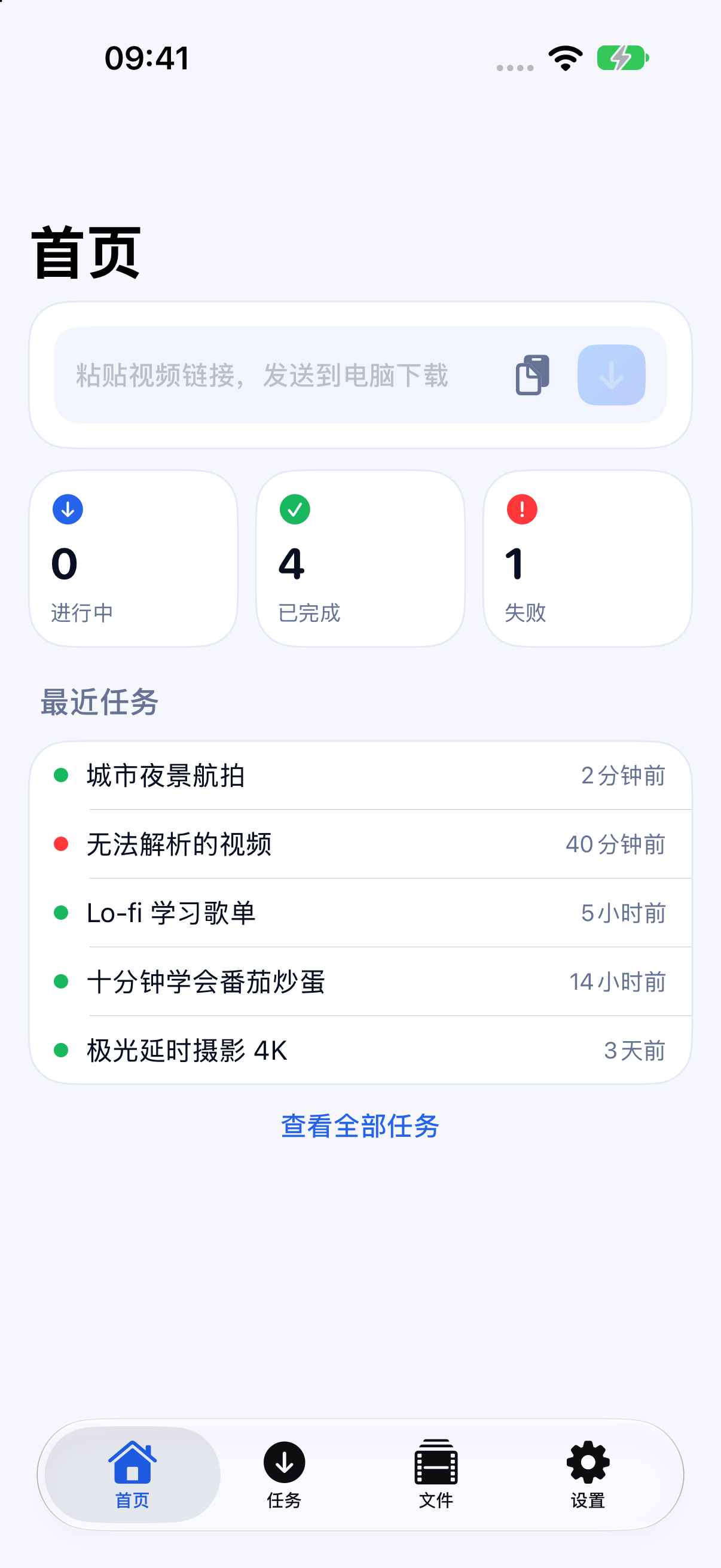
Paste one or more links in the app, or send a webpage to SaveXTube Desktop from the iOS or Android share sheet.
The mobile companion to SaveXTube Desktop
SXTDRemote brings SaveXTube Desktop to your phone. Send video links, check download progress, browse media on your computer, and bring selected files back to your phone.
Available for iPhone and Android; pair it with a running SaveXTube Desktop.
Start on your phone, download on your computer
SXTDRemote connects to your own computer through the SaveXTube Desktop HTTP API.
Paste one or more links in the app, or send a webpage to SaveXTube Desktop from the iOS or Android share sheet.
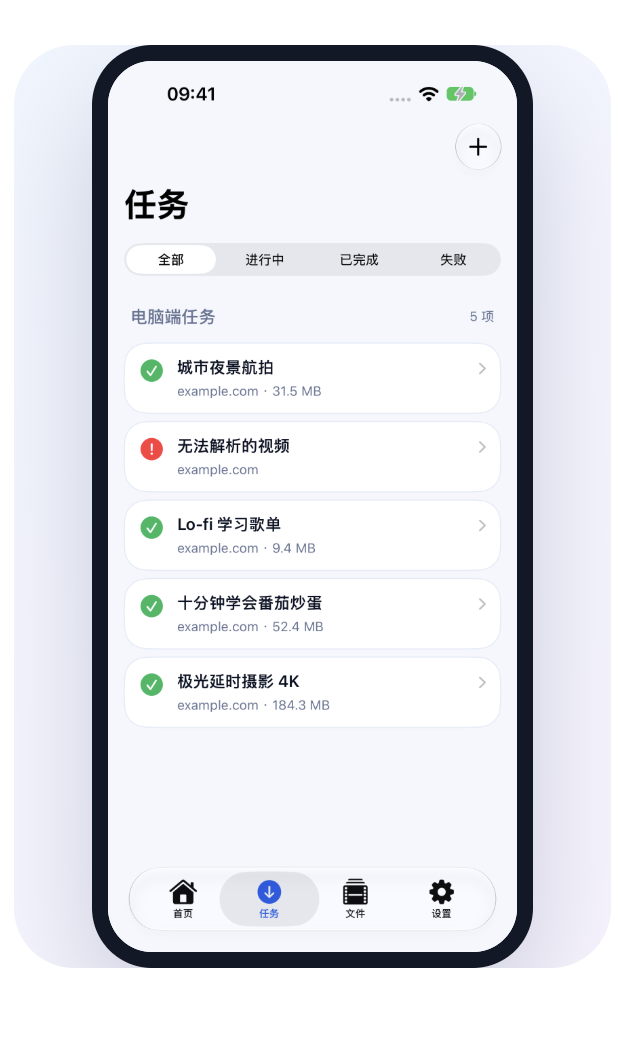
Check job status and recent activity. The iOS app can also manage jobs remotely; Android currently supports viewing and filtering jobs.
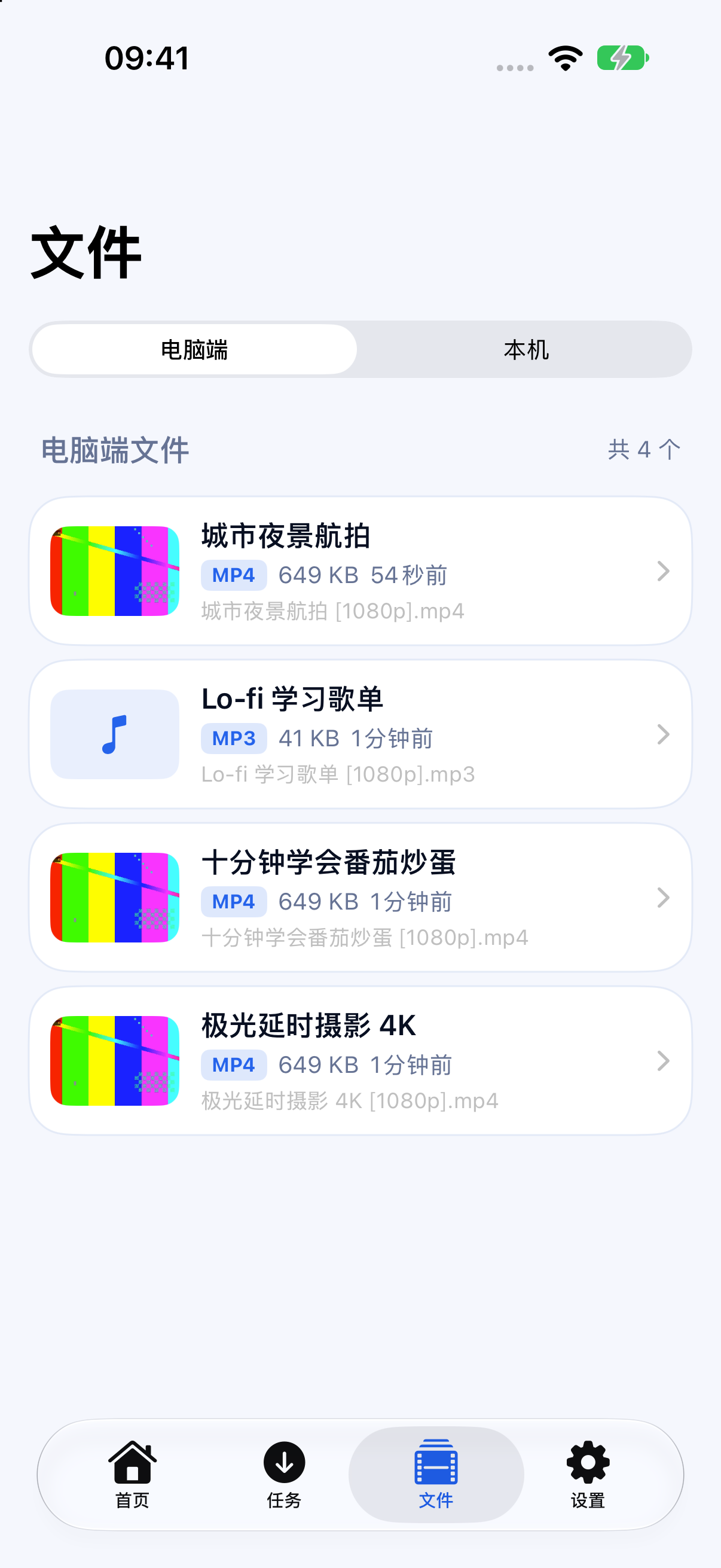
Search downloads, preview audio and video, and read existing transcripts and summaries. Retrieve selected files to your phone for offline viewing or sharing.
Scan the code shown in Desktop or paste a pairing link. Manage multiple computers and connect over your local network or Tailscale.
Retrieved files stay on your phone. On iPhone, play them offline or save them to Photos; on Android, files go to Downloads.
The iOS app includes a Home Screen widget and push notifications for completed or failed jobs.
Work together across devices
SaveXTube Desktop runs downloads on your Mac or Windows PC. Use your phone to submit links, check progress, and choose files, without moving your download workflow to a cloud library.
Choose files from your phone
Search downloads on your computer, preview supported audio and video, then retrieve selected files to your phone. Transfer progress appears in the local library.
Install and open SaveXTube Desktop, then open the SXTDRemote pairing option under Settings → Remote Control. Connect over your local network or Tailscale.
Get started
For a local connection, both devices typically need to use the same network. When away, you can reach your computer through a private network such as Tailscale.
Jobs run on the SaveXTube Desktop you paired. When you retrieve a file, it transfers from your computer to your phone, where the local copy is stored.
Open the pairing QR code in Desktop and scan it with SXTDRemote, or paste the pairing link generated by Desktop.
See the remote download FAQ for HTTP API and private network setup.