SaveXTube Guide: Download WeChat Channels Videos at Original Quality
Save Watermark-free WeChat Channels (sph links) videos to your computer at original quality. Everything is parsed and written locally, with no quality loss.
Paste a Channels link and SaveXTube parses it on your own machine, extracting the real original-quality video stream. No packet-sniffing tools needed — every job, Cookie, and downloaded file stays on your computer.
Step 1: Configure Tencent Yuanbao Cookies (for original-quality parsing)
How parsing works: WeChat Channels distributes video over encrypted streams, so SaveXTube uses Tencent Yuanbao (yuanbao.tencent.com)'s parsing service to extract the real watermark-free MP4 direct link. You only need to configure Yuanbao's login Cookies once to enjoy stable downloads.
1. Install the Cookie-Editor extension (Microsoft Edge shown; Chrome is similar)
Install the lightweight Cookie-Editor extension and you can export Cookies safely in one click:
-
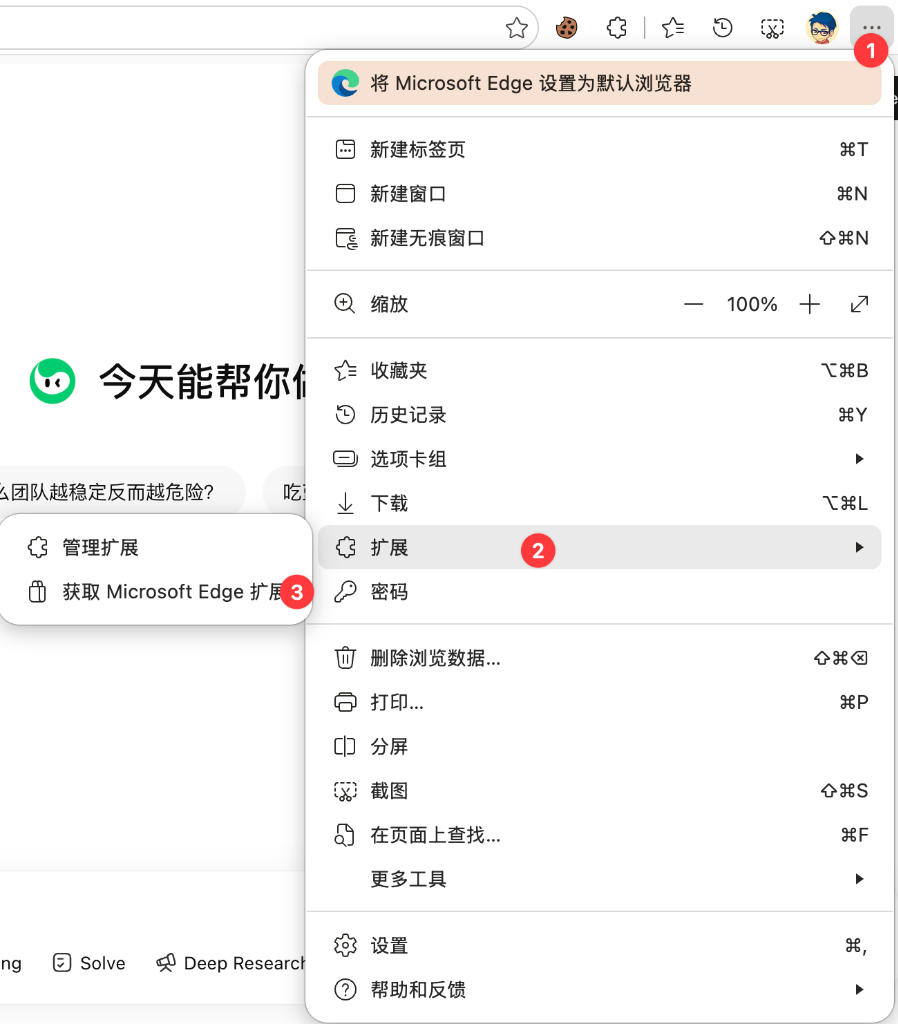
❶ Open the Edge Add-ons store:
Click the "…" menu at the top-right of Edge → hover over "Extensions" → click "Get extensions for Microsoft Edge"; -
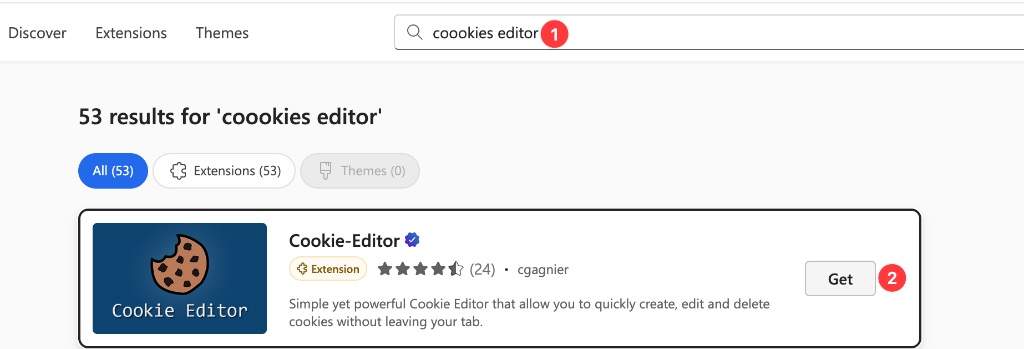
❷ Search for and add Cookie-Editor:
Typecookie-editor(orcookies editor) into the store search box, find Cookie-Editor in the results, and click "Get" on the right to confirm; -
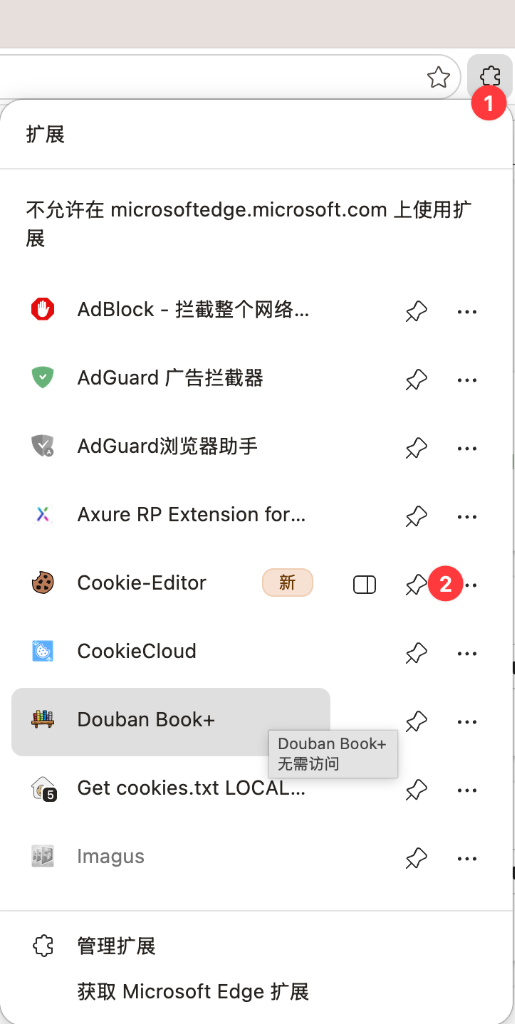
❸ Pin the extension to the toolbar:
After installation, click the puzzle-piece icon at the top-right, then click 📌 Pin next to Cookie-Editor so it stays in the toolbar for quick access.
2. Sign in to Tencent Yuanbao and export Cookies in one click
- Open https://yuanbao.tencent.com and sign in by scanning the QR code with WeChat;
-
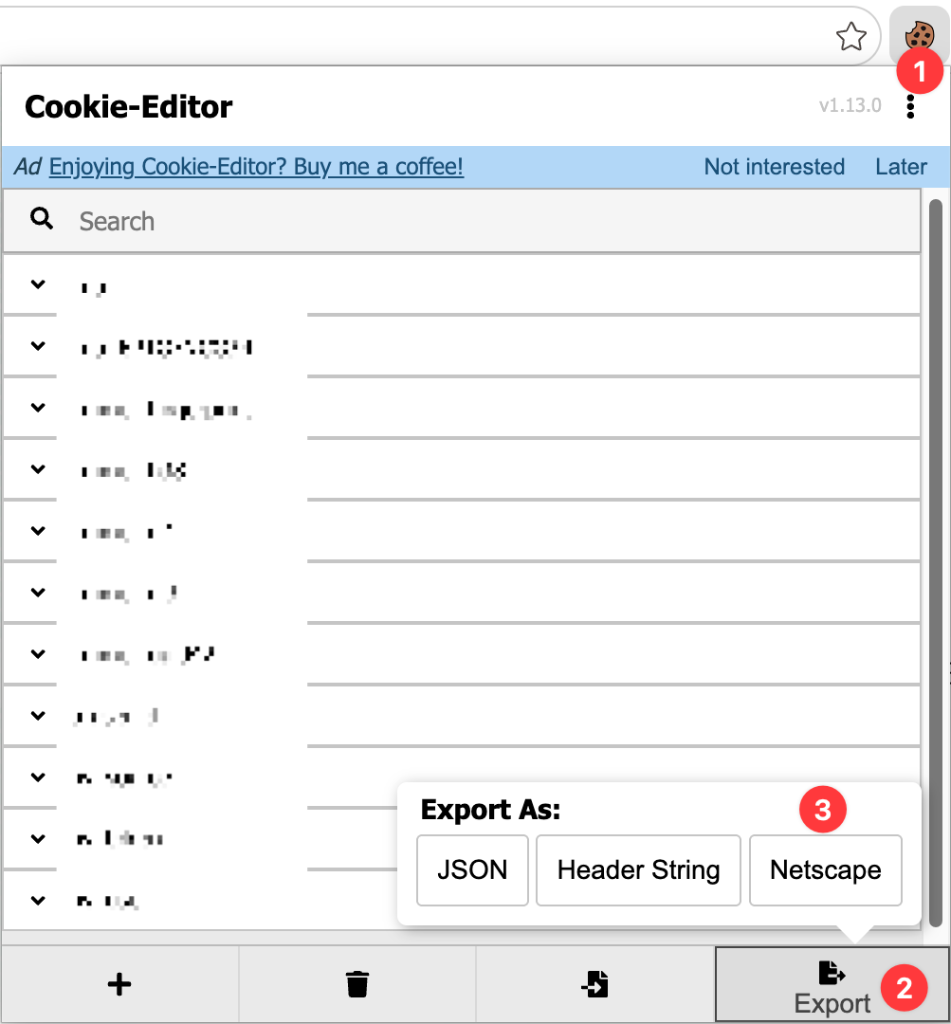
Export Cookies with Cookie-Editor (see the guide image below):
- ❶ Click the extension icon: on the signed-in Yuanbao page, click the brown cookie Cookie-Editor icon in the toolbar;
- ❷ Click export: in the pop-up panel, click the "Export" icon at the bottom;
- ❸ Choose the Netscape format: click "Netscape" in the options, and the Cookie text is copied to your clipboard automatically.
3. Paste and save it in the SaveXTube app
- Open SaveXTube Desktop and click the "Settings" icon at the bottom of the left sidebar;
- Switch to the "Cookies" tab in the top bar;
- Pick "Channels" (or WeChat Channels) in the "Platform" dropdown;
- Paste the Cookie text you just copied into the large text box (or click "Import from file" and choose the exported
cookies.txt); - Click "Save" at the bottom-right — once the status turns to "Ready / Saved", it takes effect immediately!
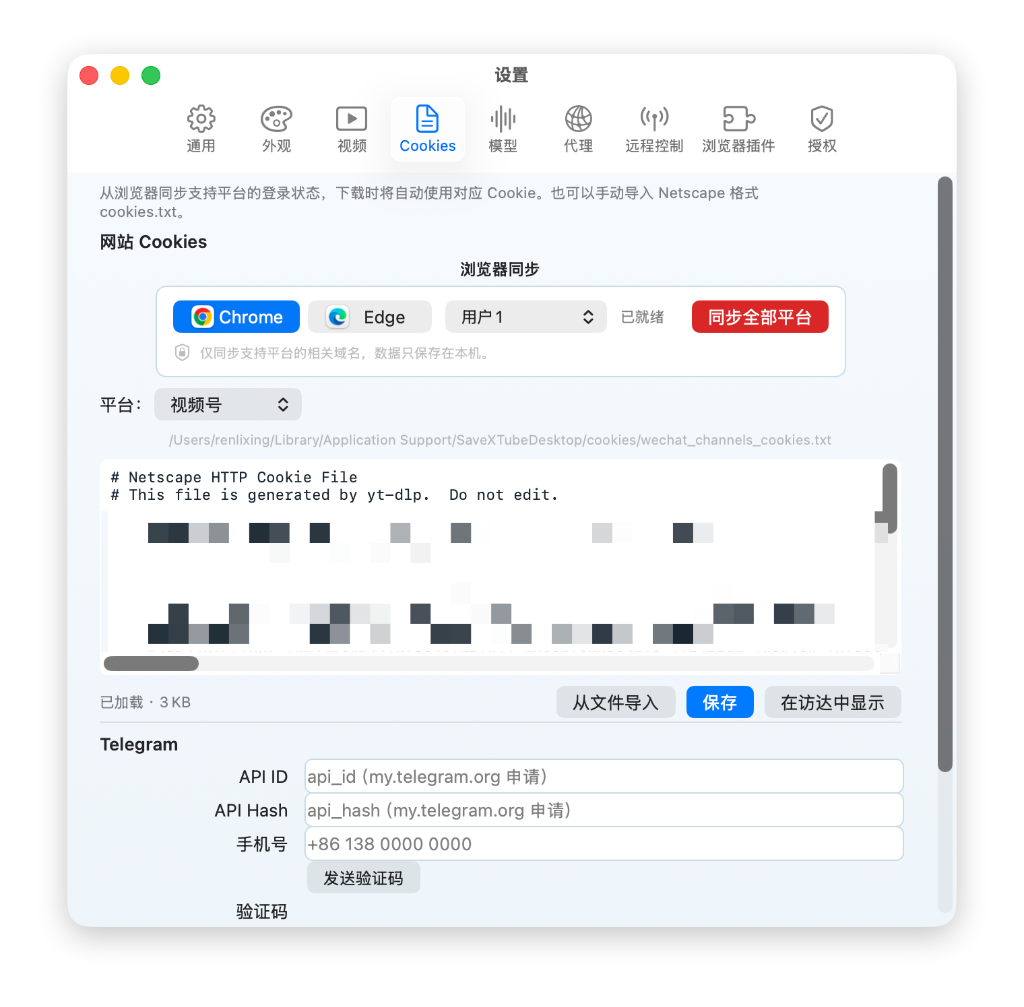
After saving, the Cookie file is stored only in a dedicated secure directory on your machine and is never uploaded anywhere:
• macOS:
~/Library/Application Support/SaveXTubeDesktop/cookies/wechat_channels_cookies.txt• Windows:
%LOCALAPPDATA%\SaveXTubeDesktop\cookies\wechat_channels_cookies.txt
Step 2: Get the WeChat Channels link
With Cookies configured, you can grab a Channels link from WeChat on your phone or on desktop (Mac / Windows):
- WeChat on phone: on the Channels playback page, tap the "…" share button at the top-right and choose "Copy link".
- WeChat on desktop: open the standalone Channels player window in WeChat, click the share icon at the top-right, and choose "Copy video link".
- From a chat or Moments: for a Channels card shared by a friend, long-press or right-click and choose "Copy link".
Standard links look like
https://weixin.qq.com/sph/AE2BQl80Fj. If the copied text contains extra share wording, the app filters and recognizes it automatically.
Step 3: Paste and download at full speed
Open SaveXTube Desktop, paste the link into the input box at the top, and submit:
- ❶ Paste the link: paste the copied Channels link (e.g.
https://weixin.qq.com/sph/AqzC7jfQmq) into the input box at the top center; - ❷ Click Download: click the "Download" button to the right of the input box, and the local engine starts parsing in milliseconds and downloading over multiple threads.
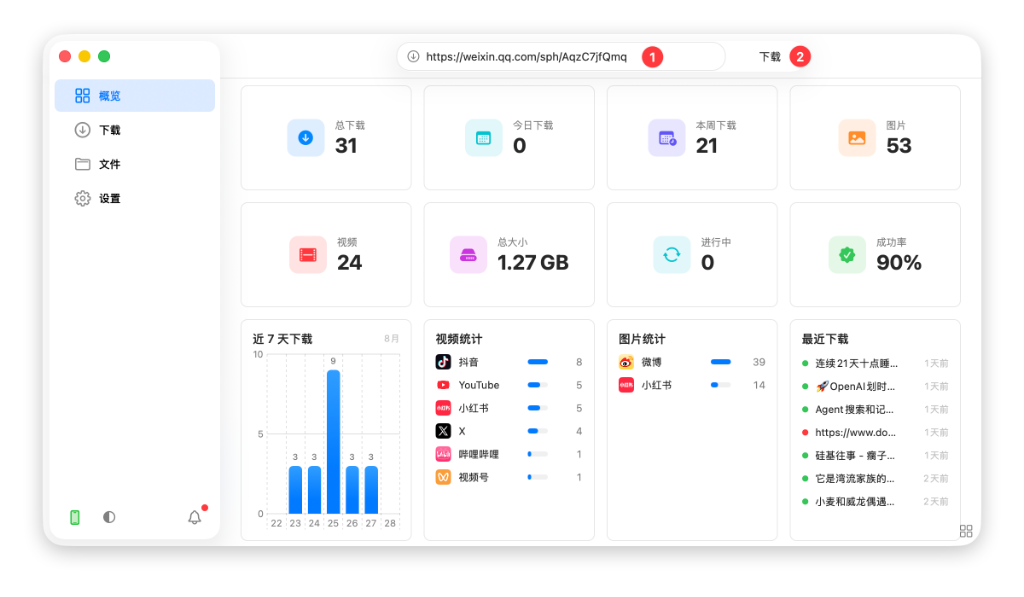
After submitting, SaveXTube automatically matches up to 1080P / original bitrate and writes the file safely to your local disk.
Step 4: Manage files, convert formats, and transcribe with AI (optional)
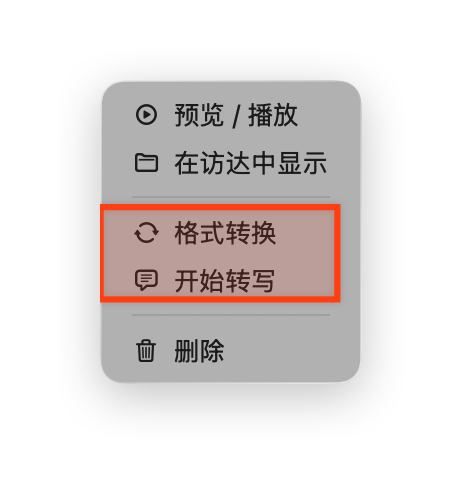
Once the download finishes, open the "Files" page in the left sidebar to see every original-quality video you've downloaded. Right-click any video to open the full local menu:
- Convert format: quickly convert the video into another audio/video format or codec;
- Start transcription: use a local AI model to turn the speech in the video into text, entirely offline.